
AI Video Tools for OnlyFans: Text-to-Video vs Image-to-Video Explained
Video is the fastest-growing content format on OnlyFans. This guide explains how text-to-video and image-to-video AI tools work, when to use each, and how to generate your first video on OFGenerator.

Images build your catalog. Video builds your revenue.
Creators who add video to their OnlyFans consistently report higher subscription retention, more tips, and stronger performance on pay-per-view content. Video creates a sense of presence and movement that static images simply can't match — and subscribers pay a premium for it.
The problem has always been production. Filming, lighting, editing, and rendering video is time-consuming, technically demanding, and expensive to do at scale. AI video generation solves that.
In 2026, you can generate short video clips from a text description or animate your model image — no camera, no editing software, no production crew. This guide explains how both approaches work and when to use each.
How Text-to-Video Works
Text-to-video (T2V) generates a video clip entirely from a text prompt, with no identity constraint. You're not trying to feature a specific persona — you're creating a scene, an atmosphere, a concept. The AI has total creative freedom.
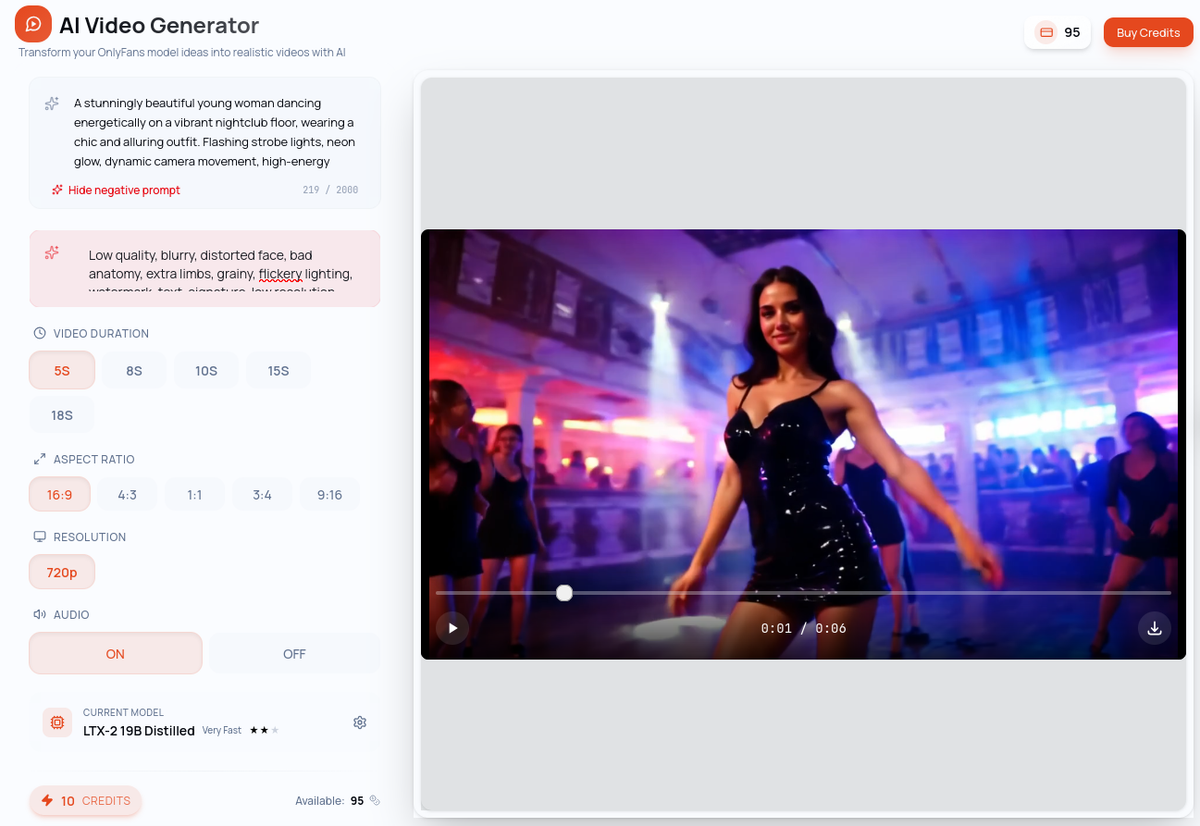
You describe what you want to see: the setting, the movement, the mood, the visual style. The AI generates a clip matching your description from scratch.
Example prompt: "A sun-drenched bedroom in the early morning, soft light filtering through white curtains, gentle breeze moving the fabric, warm and intimate atmosphere, cinematic style, smooth camera movement"
Best for: Atmospheric content, creative scenes, backgrounds, and any content where you don't need a specific face or identity to appear.
Key characteristic: No model required. T2V gives you complete creative freedom — but without an identity anchor, you can't guarantee a consistent persona across clips.
How Image-to-Video Works
Image-to-video (I2V) generates a video clip from a reference image — your model. The AI uses that image as the visual anchor and animates it, preserving your persona's identity throughout the clip. This is the video equivalent of Image-to-Image: same person, new scene.
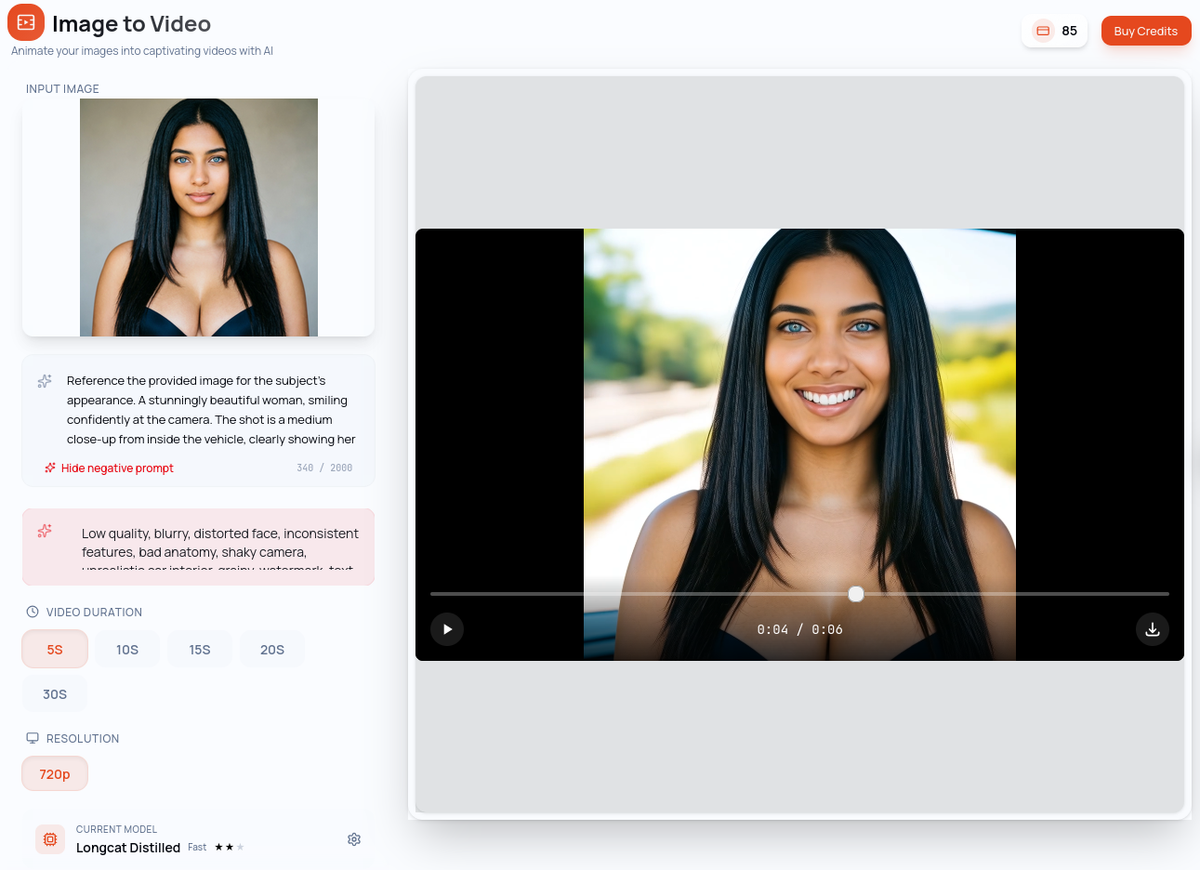
You provide your model image and write a prompt describing the motion and atmosphere. The AI brings your persona to life.
Example prompt with reference image: "Slow, subtle breathing movement, hair gently moving in a light breeze, soft warm lighting, intimate and relaxed atmosphere"
Best for: All catalog content featuring your persona — teasers, pay-per-view clips, profile content. Anywhere your model needs to appear.
Key advantage: Your model's identity is preserved throughout the generation. The face, the look, the visual brand — all consistent with your established persona.
T2V vs I2V: When to Use Which
The choice is straightforward once you understand the core difference:
Use Text-to-Video when you're creating content that doesn't need to feature your specific persona — atmospheric scenes, backgrounds, creative concepts, or experimental content.
Use Image-to-Video when your model needs to appear in the video. This is your standard tool for catalog content, teasers, and any clip where identity consistency matters.
In practice, most of your catalog content will use I2V. T2V is valuable for creative exploration, supplemental content, and building atmospheric pieces that complement your main content.
Quick comparison
Text-to-Video — Input: text prompt only | Identity: not applicable | Use when: no persona constraint needed
Image-to-Video — Input: model image + prompt | Identity: high, preserves your model | Use when: your persona must appear
Step-by-Step: Generate Your First Video on OFGenerator
Step 1: Choose your module
Text-to-Video: No model needed. Write your prompt to describe the scene, movement, mood, and style. The AI generates freely.
Image-to-Video: Select your model image as the reference. Write a prompt describing the motion and atmosphere. The AI animates your persona.
Step 2: Write your prompt
For both modules, a good video prompt has the same four components as image prompts — subject or scene, setting, mood/lighting, style — with one addition: movement.
Describe what is moving and how. "Slow, gentle head turn" produces very different results from "walking across the room". Start with simple, subtle movements for the most reliable results.
Step 3: Select your model and generate
T2V and I2V each have their own independent model selection. Choose a faster model for drafts and exploration, a quality model for final publishable content. Video generation takes longer than images — factor this into your workflow.
Step 4: Review and iterate
Review the output carefully: Does the motion look natural? Is the identity consistent with your model (for I2V)? Is the clip usable as-is?
Small prompt adjustments — slowing down the motion, simplifying the action, changing the lighting description — often produce significantly better results. Iterate until the clip meets your standard.
Limitations to Know
Duration. Clips range from 5 to 30 seconds depending on the model and settings. They work best as teasers, loop content, or supplemental pieces rather than long-form video.
Simple movements work best. Complex, multi-step movements are harder for AI to render convincingly. Start with subtle animations — breathing, hair movement, slow camera pans — and work up from there.
Generation time. Video generation takes considerably longer than images. Plan your generation sessions accordingly, especially when working in batches.
T2V identity variation. Without a reference image, the AI has no persona anchor. Don't use T2V when visual consistency with your model matters.
Tips for Better Video Results
Start with slow, simple movement. Subtle animations consistently outperform complex action sequences. They look more natural and generate more reliably.
Use your best images for I2V. The quality of your reference image directly affects the output. Sharp, well-lit images with clear subject definition produce better results than soft or low-contrast references.
Write motion into your prompt explicitly. Don't just describe the scene — describe what's moving and how. Specific motion descriptions give the AI clear direction.
Use video as a teaser. Short, high-quality clips that hint at more drive stronger pay-per-view performance than long videos published freely. Video is your premium content lever.
Batch your generations. Generate multiple prompt variations for the same concept at once. This gives you options and helps identify which prompt elements produce the best motion.
Ready to add video to your catalog? OFGenerator's Text-to-Video and Image-to-Video modules are available from your dashboard. New accounts include 10 free credits.