How to Fix Face Drift in AI Image-to-Video Clips
The first frame looks like your character. Three seconds later, something feels off. Find the moment the face changes, then decide whether to adjust the photo, the movement, or the camera.
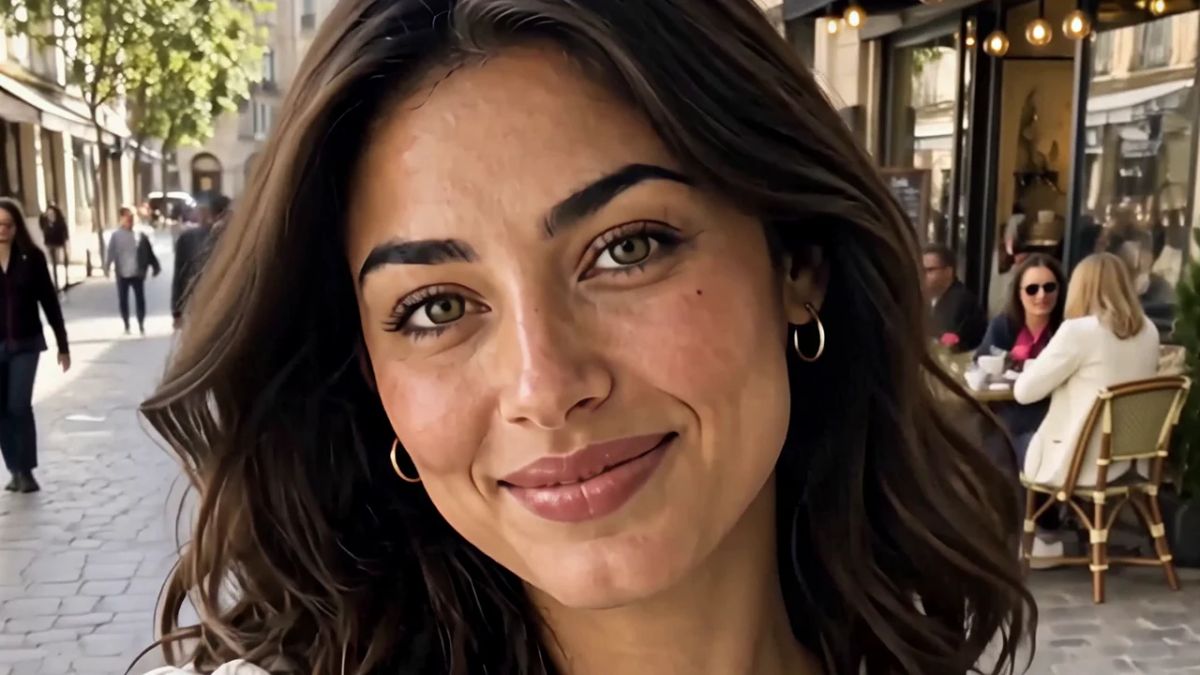
The first frame looks like your character. Then the head turns, one eye changes shape, and the face you started with is gone. Before you rewrite the whole prompt, find the first frame where the face looks wrong and replay the second around it. What happens just before the change is a clue to what you should try next.
If the face looks wrong before it moves, check the photo
Open the reference image at full size. Can you make out the eyes, lips, and edge of the jaw? A portrait can look sharp as a thumbnail even if the face is blurred or partly covered. Runway notes in its image-to-video prompting guide that artifacts in input images, including blurry faces, can become more pronounced in the video. [1]
Try a sharper portrait of the same character with similar framing and lighting. Keep the prompt and settings unchanged for that pass. If you change the photo and the motion together, you won't know which edit to keep.
If the face changes mid-clip, simplify what happens on screen
- It changes during a head turn. Try a small glance with the camera still. If you need a three-quarter view, start with a photo already taken from that angle. Save the full head turn for a separate shot if you need it at all.
- It changes after a hand or hair crosses the face. Move the gesture away from the eyes and mouth. For a wave, keep the hand near the shoulder and to the side of the face.
- It stretches as the camera moves in. Try the same action with a fixed camera. If the result holds up, you can try a subtle crop in the edit rather than asking the generator to create a new close-up.
- It changes when the character smiles. Try a blink on its own first. If the smile is the point of the shot, another option is to start with a portrait that's already smiling and ask for less movement.
For an eye-level selfie, start with this prompt:
The camera stays still. The character looks into the lens and blinks once.
If that clip gives you a usable face but feels too still, add one instruction: “Then the character smiles slightly.” Keep the reference, model, and settings the same. Two generations can differ even with identical inputs, so treat the comparison as a way to pick the next shot, not proof that one phrase caused the problem.
Check the face across the shot, not just in the thumbnail
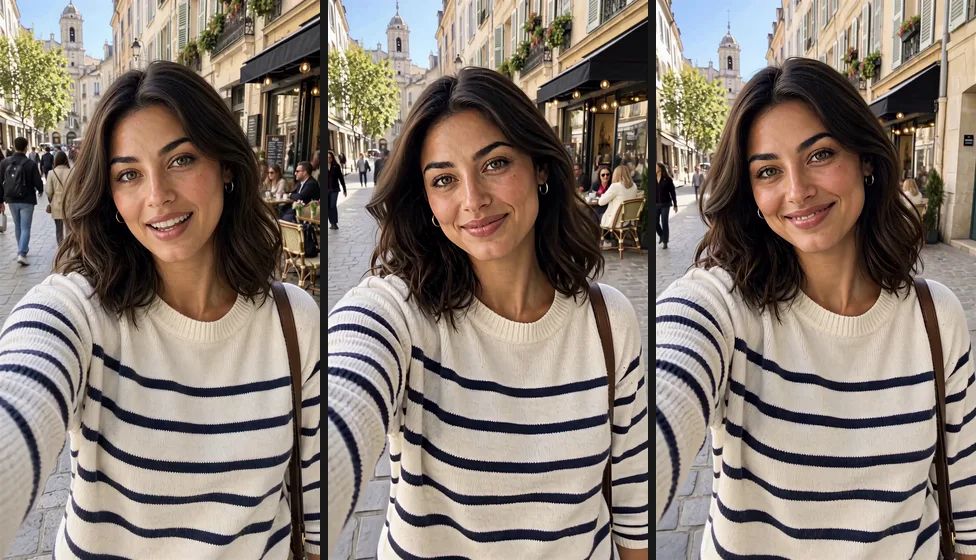
Nora's lips come together in the middle frame. That change alone isn't face drift: the same person can smile differently from one moment to the next. What you want to catch is a feature that shifts unexpectedly, such as an eye briefly changing size as the head turns. Check the start, middle, and end, then play the entire clip. Three stills can miss a problem that lasts just a few frames.
Try it on your next OFGenerator clip
On the OFGenerator video generator page, choose Image as your starting point. Available options depend on the model. [2] If you're still deciding whether to start with a photo or a text prompt, the text-to-video vs. image-to-video guide covers the difference. [3]
Before you generate again, write down one observation and one change: “At two seconds, the eye shifts during the head turn. Next pass: keep the camera still and ask for a small glance.” That's a much easier clip to review than another take prompted to look “more realistic.”