Wan 3.0 on OFGenerator: how to turn a photo into video
Start with a portrait and animate it with Wan 3.0. Try three motion prompts and learn how to pick settings and troubleshoot the result.
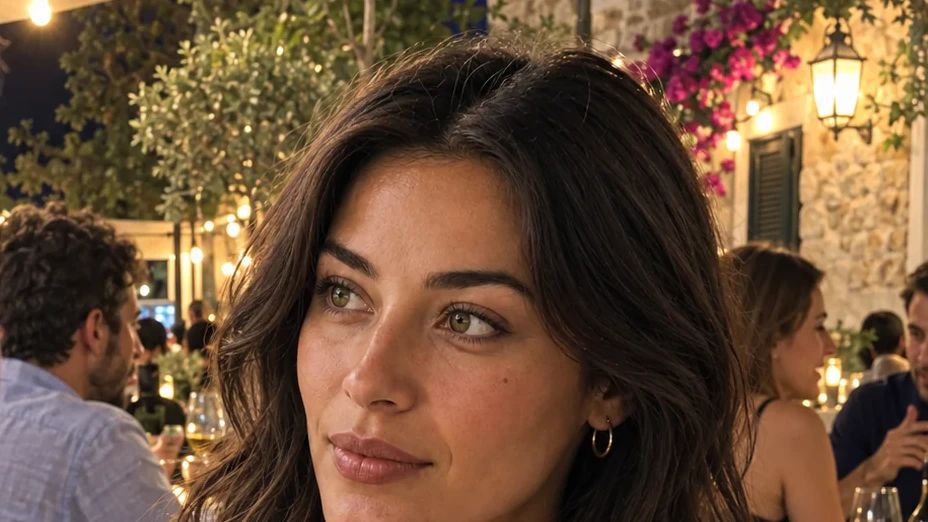
You’ve found the right portrait for your character. Keep it. With Wan 3.0 in OFGenerator’s video studio, you can start from that photo instead of describing the same face and setting all over again. For your first vertical clip, pick a movement you can judge at a glance: a smile fading or a quick look to the side.
Watch the smile in the first few seconds. Her expression changes, but you can still read her face clearly in the frame. Check that in your own clip before adding a camera move.
Start with the right image
In image-to-video, you give the model the image the shot should start from. In text-to-video, there’s no photo, so you have to describe the subject and setting too. If the video needs to look like a character you’ve already made, use the portrait instead of trying to describe the same face again.
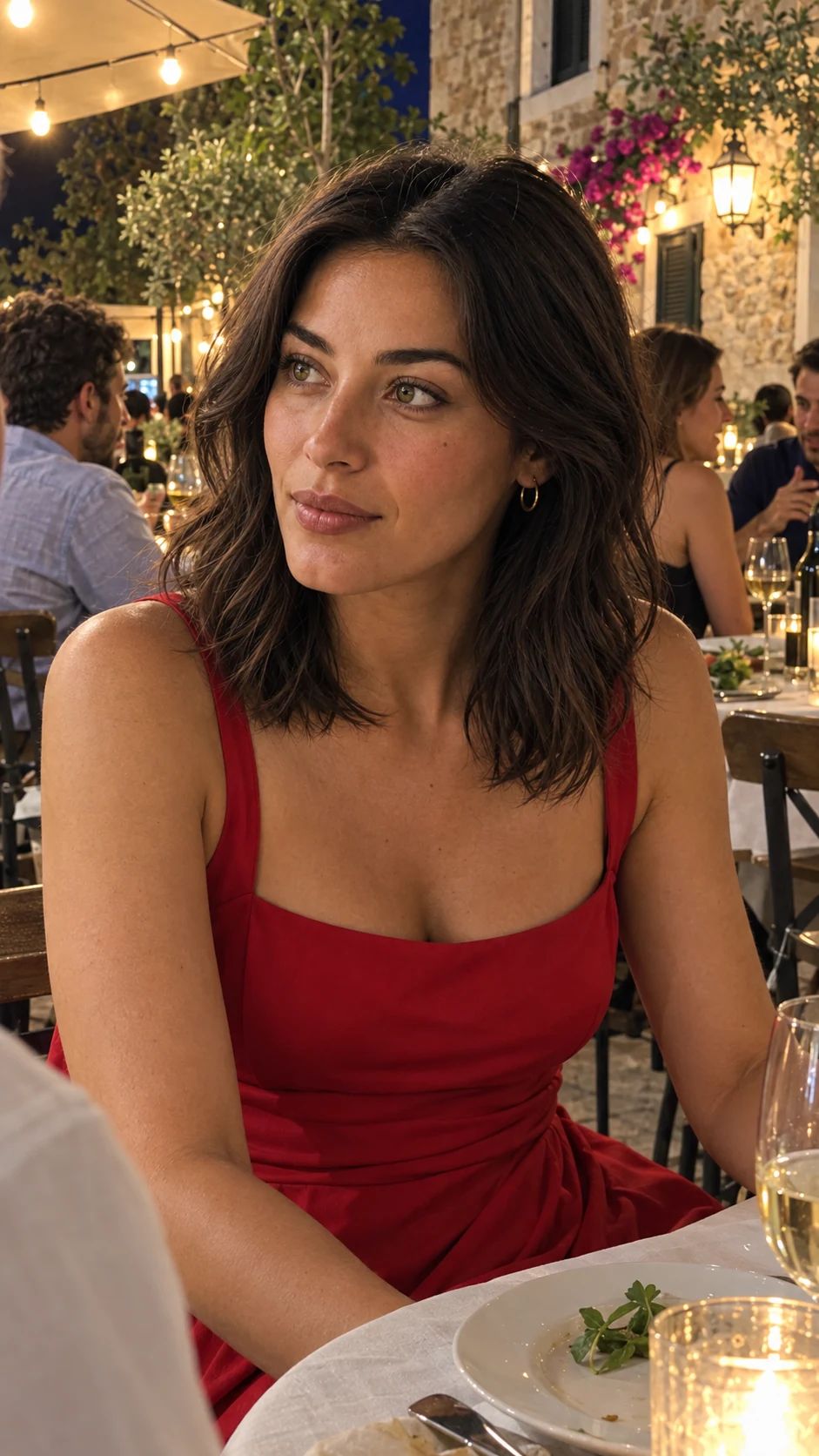
Nora’s portrait is the reference for the prompts in this guide. It isn’t a frame from a Wan 3.0 render.
Open the OFGenerator video studio, add your photo, then select Wan 3.0 in the model picker for that input. For a vertical clip, use a vertical source if you can. A hand or chin that already touches the edge of the photo has little room to move. Open the photo at full size and check the eyes and mouth before generating. Something you barely notice in a thumbnail may be obvious once it moves.
Choose the length, resolution and sound
In image-to-video mode, the studio offers preset durations from 2 to 30 seconds for Wan 3.0. For a glance or a smile, start at 5 seconds: the first thing you need to know is whether the gesture works. Try 10 seconds if you want the character to look offscreen, return to the camera and pause long enough for the look to register.
You can choose 480p, 720p or 1080p. Use 480p to check whether the shot works at all, or 720p to get a better look at small facial movements. Pick 1080p if you plan to crop the shot or need to see details in the clothing. A higher resolution won’t fix a face that changes halfway through the clip.
Turn on Audio to generate sound. Alibaba’s Wan 3.0 documentation describes dialogue, music and sound effects. If you’re editing to your own track, leave Audio off. If you add dialogue, keep the line short and watch the mouth as you listen: check both the words and the timing.
Three prompts to try
A glance and a return. This gives the model an order of events without asking for a turn from front view to profile. It’s a good starting point for Nora’s portrait.
The camera stays still. She glances briefly to her right, then looks back at the lens and holds her gaze.A little movement in the frame. For a quiet shot you can cut into an edit, leave the face alone and animate a detail that’s already in the photo.
Locked-off shot. A light breeze lifts a few strands of her hair. She keeps looking at the camera. The framing stays unchanged.A gentle push-in. If the camera move is the point of the shot, don’t ask for a head turn at the same time. Decide where you want the frame to end up before writing the prompt.
The camera slowly moves a little closer, keeping her face centered. She holds her pose and blinks once. No cut.Watch a documented Wan 3.0 example
In its First frame to video example, Alibaba starts with an illustration of a bamboo grove and describes what happens next in timed segments. Alibaba’s sample clip shows how a still can set up a longer scene. It’s a vendor demo, not a clip generated on OFGenerator or a result of the Nora prompts above.
You don’t need to time every second of a short portrait clip. Two actions in order are enough: “She looks right, then back at the lens.” For a longer scene, decide what happens in each beat before asking the model to link them together.
Fix the result without starting over
Play the clip once at normal speed, then replay the exact moment something goes wrong. If an eye looks odd from the first frame, try a sharper photo. If the face changes during a turn, keep the photo and ask for a smaller movement. If the framing drifts in what was meant to be a static shot, remove the competing camera cues before changing the image. For hands, check whether the problem starts as they enter the frame or cross the face.
Change one thing between takes. If you swap the photo and edit the duration and prompt at the same time, you won’t know what fixed the shot. The guide to face drift in AI image-to-video has more fixes based on when the problem begins.
Animate the portrait you already have
Add your photo in the video studio, choose Wan 3.0, and start with the fixed-camera prompt above.
Animate my photo with Wan 3.0Still looking for a portrait to animate? Create a portrait with Lustify V8 on OFGenerator, then use that image in the video studio.